Adjustable LED Light Bar for Lack Enclosure
by SkeletorsPETRock · via Printables
| Format | STL |
| Category | Art |
| License | CC BY-NC-SA |
| Triangles | 840 |
| Uploaded | Mar 23, 2025 |
⬇ 2 downloads
❤ 3 likes
👁 120 views
Description
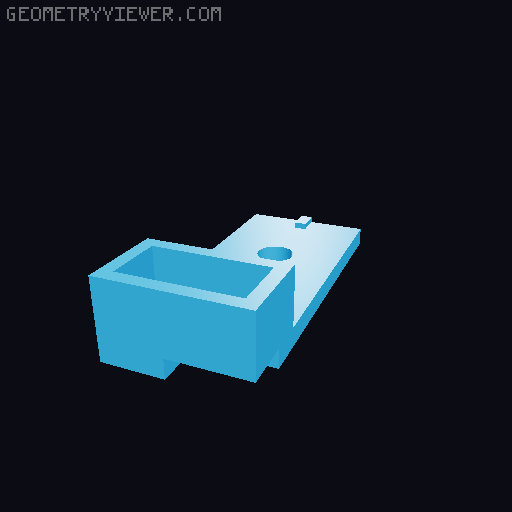
An adjustable LED light bar for prusa lack enclosures. If you are installing this on the left hand side of the lack enclosure, be aware that the support arm may come in contact with the light bar if it is not angled enough toward the printer . Also, this is a guide and may not be the exact steps that are needed for your setup. Disclaimer - This upgrade requires knowledge of working with electricity and power tools. If you are uncomfortable with either, please do not attempt this . I'm not responsible for any harm that may come your way by following this guide. I'm also not responsible for any financial damages that may occur by doing this upgrade. Print Instructions: All models are sliced with default PLA profile. Left and Right channels are used for routing the wire, supports will need to be enabled for printing the left or right part . Keep in mind that depending on which side you are mounting your wiring, may change which part you use for wiring. Needed Tools / Materials: Dremel with metal cutting wheel Screwdriver Soldering Iron Heat Gun Drill / Drill Bits Needed Materials (per LED Bar): (1) Approximately 432mm (L) x 12mm (17" x 15/32") Aluminum Channel with diffuser - https://www.amazon.com/gp/product/B01DM7EXBO/ref=ppx_yo_dt_b_asin_title_o01_s00?ie=UTF8&psc=1 (1) 406mm (L) x 10mm (16" x 13/32") LED Lighting. IMPORTANT: Be sure to choose LEDs that are compatible with your printer, or know how to get the correct way to power them (buck converter or equivalent). I chose these because I could see how many lumens they were (very bright) and they could be driven directly from the power supply of the MK3s+. https://www.superbrightleds.com/moreinfo/flexible-led-strip-lights/5m-white-led-strip-light-highlight-series-tape-light-12v24v-ip20/5515/10771/ (1) LackLEDBracket_LeftChannel or LackLEDBracket_RightChannel Part ( referred to as withChannel in Assembly) (1) LackLEDBracket_NoChannel Part (2) 5×20 mm (#10 x ¾") Pan Head Screws Wire (gauge depends on LEDs), enough length for hookup to power. Preferably two colors (red & black) (2) Spade or ring terminal connectors Heat Shrink Solder A method to turn the lights on or off - Switch or control through octoprint. I followed this guide for controlling my LEDs: https://toms3d.org/2017/07/16/software-controlled-leds/ Assembly: 1. Print the needed 3d parts. 2. Drill the holes in the Prusa_MMU_enclosure_corner_top_front and Prusa_MMU_enclosure_corner_top_rear. NOTE: A screw may be already installed, if so, remove it. 3. Measure the width of the opening for the LED Bar, this should be measured where screw holes of the light bar will be mounted. Subtract 8mm (5/16") from A. 4. Using the dremel, cut the aluminum channel and diffuser to the length determined in 4. 5. Cut the LED strip to the nearest cut length that is smaller than the Aluminum channel. 6. Measure the needed length of wiring. 7. Use the soldering iron to solder the wires onto the LED strip positive and negative terminals and note which color is the positive wire (red) and which is the negative wire (black) 8. Cut heat shrink to fit over the newly soldered wires and place the heat shrink over the exposed soldered terminals on the LED strip. NOTE: you may need to pull back some of the 3m backing so the heat shrink doesn't stop you from pulling off the 3m backing. 9. Use the heat gun on the heat shrink - make sure the heat shrink is covering the exposed wires, but not covering the LEDs on the strip. 10. Mount the LED Strip in the Aluminum channel. 11. Install the diffuser on the Aluminum channel. 12. Put the wiring through the withChannel part and secure the part to the Aluminum channel. 13. Secure the NoChannel part to the other end of the Aluminum channel. 14. Install the LED strip using the screws. 15. Route the wiring. 16. Connect method of control 17. Make sure power is removed from the printer before connecting to the terminals on the printer! Not doing so can damage your equipment and put your life at risk. 18. Connect to power - IMPORTANT: If hooking up to the power supply directly, please check for the correct positive and negative terminal for your power supply, and double check the voltages match! Also, make sure to add the proper spade terminal for hookup. You want a tight flat connection to your power supply, if not, it could cause damage to the other electronics on the printer.
Originally published on Printables