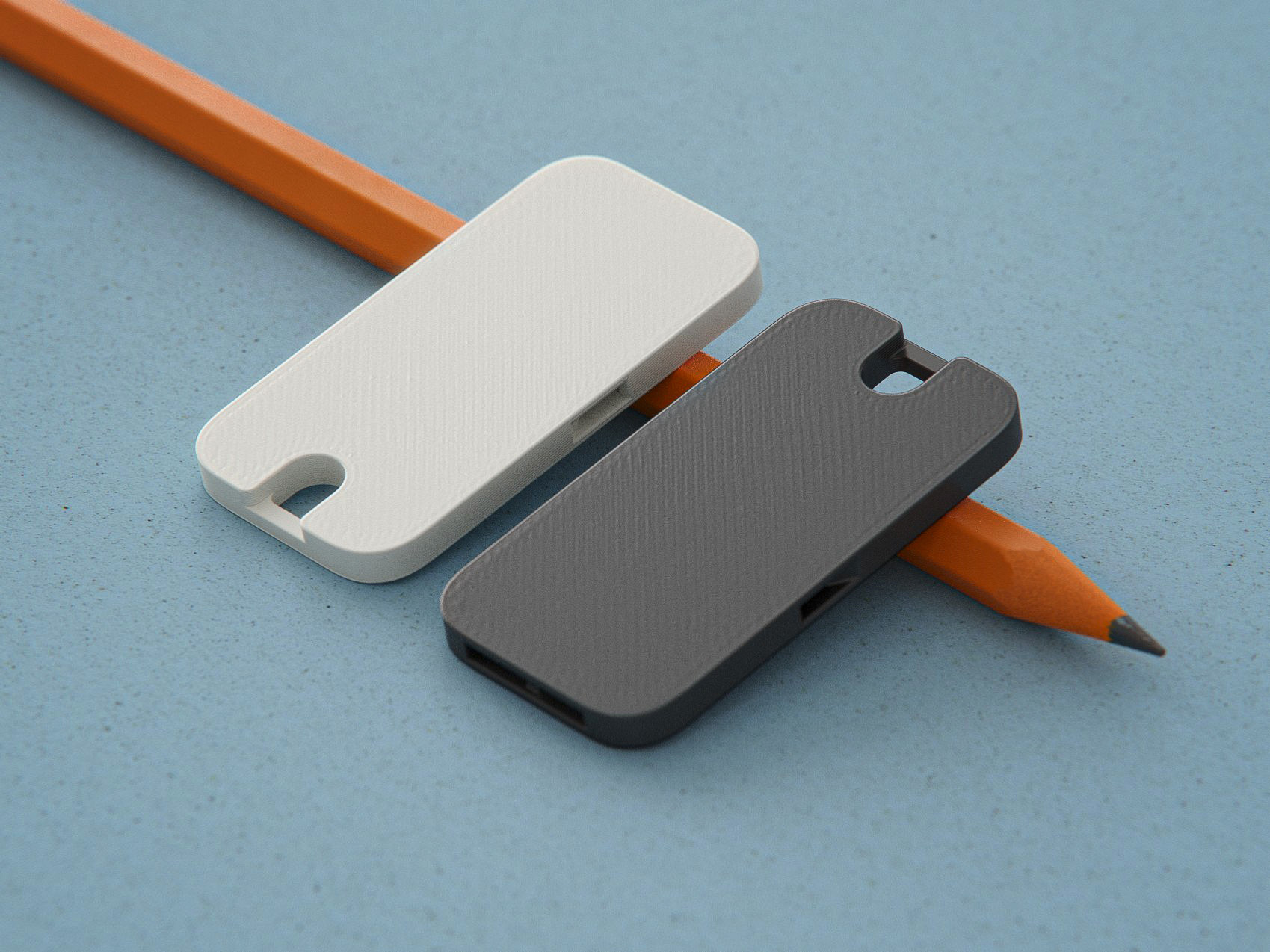
Another Parametric Seedling Labels (Based on @seasick / @fortinmike models)
by rbid · via Printables
| Format | STL |
| Category | Home |
| License | CC BY-NC-SA |
| Uploaded | Aug 6, 2023 |
⬇ 306 downloads
❤ 107 likes
👁 2.3k views
Description
1.- Motivation As with all prints I do, all start or from a need or a lust-to-have. As an additional hobby that I have is to grow hot peppers, and at the beginning of each season, I grow new seedlings from new varieties, therefore there is a need from continuously have new labels. The requirements were to have simple and fast-printing labels, therefore I started from the model posted by @seasick Stylish Plant Labels and have done some simplifications: Simplification Motivation Size Having a Prusa Mini+ printer, I wanted labels that are easy to print on this printer without the need to downsize them. Single STL Personally, I prefer single STL file per label against a multi-part STL file to be generated. (A Slicer program allows you to put multiple STL files in the bed at any orientation you want) Single Text label The original had two text labels: Species and Genius. For my needs only one text label was enough. Fast Printing Although a “stylish” label may be nicer, but takes longer to print. Therefore, I opted to remove the leaves and petioles for simplicity. Multi-Language Allow printing labels also in other languages, like in Hebrew that requires right-to-left text direction. The difference with the original model is that here I'm adding the capability to generate a “single” STL at a time, but via an external script you can generate as many STL files you need. 2.- Important Note In order to customize the labels, you need OpenSCAD and the ability to run the tool from a command line for generating the STL files. It is possible to run the OpenSCAD script from inside a different script (for example Python script as I did) for generating a bunch of labels in series although this is not mandatory (but it can help). Even said that, you can still use the bunch of STL files I'm providing with already prepared labels for all the varieties of hot peppers I grow. 3.- Tools Required You need to have OpenSCAD installed in your computer. (Can be downloaded from https://openscad.org/downloads.html, select the correct platform you have). Important Note: The script uses a third party free library called everything-round , when the installation guidelines are simple and direct from this page: https://github.com/Irev-Dev/Round-Anything/discussions/21. For running the tool inside a Python Script as I did, you need Python3 installed (I used a Linux machine that it had already installed, read here if you need a hint how to install Python3: https://realpython.com/installing-python/). Inside the python script. I use pandas and openpyxl module installed. For installing them you run from the command line: pip3 install pandas pip3 install openpyxl The script and some of the companion files were uploaded to my GitHub profile, you can also download the scripts from there: https://github.com/rbid/SimplePlantLabels. (Soon I will update there as well) 4.- Generating the Labels There are four ways how to generate the labels: From Command Line, what I call “manual generation” . From a Script (Python Script in my case, my preferred way, but needs an Excel file.) From OpenSCAD script , that needs editing the script per label Drop me a note, and I will generate the STL for you and upload to this page. Please select the method that is suitable for you. The following sections describe each of the methods. As most of the OpenSCAD scripts, they use/expose constant variables that allow you to configure how the script runs, they are at the beginning of the script, and can be modified from command line(#1, #2 from above) or by editing the script (#3 from above). The suggested parameters are: ParameterConfigures label_text Sets the text to print in the stick. label_direction Configures the text direction: - “ ltr ” (Left to Right, default direction) - “ rtl ” (Right to Left, for Hebrew for example) stick_length Length of the stick to be printed, defaults to 170. label_font The font to use, The default is “ DejaVu Sans Condensed:style=Bold ”, You can get or from inside OpenSCAD or from command line by running from the command line the command fc-list: fc-list -f "%-60{{%{family[0]}%{:style[0]=}}}\n" | sort (See https://en.wikibooks.org/wiki/OpenSCAD_User_Manual/Text ) There are other variables can be modified as well, but the scripts I use only modify the first two, look on the provided script if you want more control. The sections below explain the different ways how you can generate or get the STL files. 4.1.- First Option: Manual Generation from the command line shell This method is the simplest, requires you open a command line terminal. I use Ubuntu Linux bash console, but I guess you can get a similar terminal in Mac or Windows. An example for the command line is: $ openscad simple_plant_label.scad -o "Label-Carolina-Reaper.stl" \ -D 'label_text="Carolina Reaper"' PolySet has nonplanar faces. Attempting alternate construction Geometries in cache: 4 Geometry cache size in bytes: 3448920 CGAL Polyhedrons in cache: 1 CGAL cache size in bytes: 44045216 Total rendering time: 0:00:16.892 Top level object is a 3D object: Simple: yes Vertices: 19506 Halfedges: 102212 Edges: 51106 Halffacets: 63210 Facets: 31605 Volumes: 2 $ The first line is the command to be run when: openscadCall OpenSCAD command from command line.simple_plant_label.scadThe name of the script.-o “Label-Carolina-Reaper.stl”Output file name.-D ‘label_text="Carolina Reaper"’Set the label_text to “Carolina Reaper” text The script takes ~5 to 20 seconds to complete until the command line prompt returns as shown above. Displaying the STL file with “meshlab” shows: 📷 Image redacted — claim this model to add your own media Note: If the everything-round library was not installer, then you will get an error. 4.2.- Second Option: Using a script for generating multiple STL files I did not found in OpenSCAD how to generate multiple STL files per run, therefore I decided to use my scripting capabilities that I'm sharing here for running a simple Python script, that does: Open an Excel file. (The reason, multi-language support) Per row in the Excel file do: Get the label name, the text direction, and file name to generate. Run the OpenSCAD script for generating the STL file related to the row. Once the Excel competes, the script stops. The attached ZIP file includes the script and an Excel example that you can run it. For getting “help” in how to use the script: $ python3 create_stl_labels -h For running the script with the default settings, but provide verbose output use: $ python3 create_stl_labels -v That is, it will use: Use simple_plant_label.scad as OpenSCAD Script Use labels.xlsx as Excel file as input. Generate the output into the output sub-directory. 4.3.- Third Option: Run OpenSCAD and per label edit the text This is the less wanted option, but possible. Here, you run openscad by providing the OpenSCAD script. (I guess you can also load the script after you opened the OpenSCAD GUI) and the steps are: Change the label_text and optionally label_direction (Lines 32 and 32) press the Render button, (Sometimes you need to press the preview first) press the Export As STL file. This operation causes a pop-up window to open. for selecting the STL file name. 📷 Image redacted — claim this model to add your own media The Popup allows you to select the file name and save it.. Then repeat the same for the next label. 4.4.- Fourth Option: Drop me a note and I will create the label for you I can create the label for you, just drop a message and I will inform you when the label will be waiting together with the example labels that come with this page. Take in mind that I'm doing this voluntarily :) 5.- Printing the Sticks No special settings are required, but for a fancy label, I suggest changing filament color at the height of 4.2 as in the picture below: 📷 Image redacted — claim this model to add your own media For the color change, I followed the instructions in “ Color Change ” page of the Prusa Slicer documentation. Although I printed mine in PLA+, it is advised to use PETG, Here are the settings I used: Nozzle:0.4mmLayer Height:0.2mmPerimeters:2Infill:Gyroid 15%Supports:NoneFilament Type:PLA (I used eSUN PLA+)Material consumed(*):1.08 mt. (3.3 gr)Estimated Print time(*):24min. (*) for a single stick. 6.- Change Log Update: 2023-07-05: Fix broken links. Upload: 2023-07-02: Initial Version. 7.- Last Words 📷 Image redacted — claim this model to add your own media Please don't forget to ★ Rate and ❤ Like Post your Makes to earn Prusameters! Do not hesitate to ask questions, feedback is essential to making better models. You are kindly invited to follow me to get updated when upload new models. Happy printing & Greetings from the Galilee. Hope it was not TL;DR
Originally published on Printables