COREBOXX & SEMI-Smart addon - Spool lights - light active filament
by Krosta · via Printables
| Format | STL |
| Category | Art |
| License | CC BY-NC-SA |
| Triangles | 2.2k |
| Uploaded | Sep 4, 2025 |
⬇ 57 downloads
❤ 31 likes
👁 899 views
Description
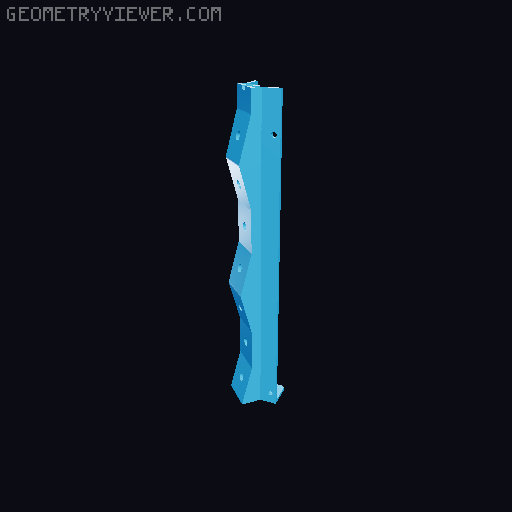
I always wanted to have some box on the printer (when I got MMU3), but my printer is in a room, where is not so much light, so I wanted to add lights over filaments in the box and also to have any light in the box. Together with COREBOXX and SEMI-SMART and a lot of support from Voxel3D (author of COREBOXX and SEMI-SMART) I was able to create GPIO operated lights in the COREBOXX. Based on current setup, the features are: Lights up the box after the printer and SEMI-SMART are powered During print lights up only active filament position (spool) After print is finished - lights up again all filament spools HW needed COREBOXX (not necessary, but models are done for COREBOXX) New parts are required to add the mounting points for LED modul SEMI-SMART module - power and GPIO integration Connectors MOLEX 502578-0400 - highly recommend to buy already connector with cables (in that case no need for pins 502579-0000) PINS for MOLEX 502579-0000 Dupont connector for spare GPIO pins (for 3 pins minimum, recommend 5 pins for better stability on the PCB) 3x PIN for Dupont connector Resistors 15x 1k5 resistor for LEDs (recommended 1W) 2x 220R resistor for GPIO PINS 2x 10k resistors for MOSFET (between GATE and SOURCE pins) Other 4x heat insert M3xL4xOD5 - same what was in the COREBOXX/SEMI-SMART 2x MOSFET IRLZ34N (for LEDs on GPIO pin 4 & 5) 15x LED (5mm) 3.1V - I personally used cold white colour with current up to 25mA - luminous intensity up to 8500) Cables thickness 0.08-0.25 (I personally used 0.25mm)- each cable will be longer less than 1 meter Installation instructions Important information is, that each LED will be turn on/off with GND. Cables should be around 70cm long (measured from the LED modul to semi-smart connectors) LED preparations Install 1k5 resistor on each positive connector on the LED Every resistor (connected to the LED) connect together - so you will end up with one positive cable to light up potentially all LEDs During installation I highly recommend to install resistors on all LEDs and to shorten the connectors as much as possible (leave like 1 cm on LED positive connector and same for resistors) MOSFET Preparation - only for 4th and 5th spool light Place the MOSFET with the metal part with hole on table - that way the pins are from left: GATE-DRAIN-SOURCE. VERY IMPORTANT to do this right! Between GATE and SOURCE is recommended (not mandatory) to put 10k resistor to ensure “pull-down” GATE is connected on PIN (SEMI-Smart) - don't forget to also add on that cable resistor 220 to ensure GPIO protection DRAIN is connected to GND of LEDs SOURCE is connected to GND next to PIN on SEMI-Smart Rest should be pretty clear with the "schematic" which I prepared. It was done in EXCEL (sorry for that), but it should be enough for explanation how to do the wiring. Let me know, if any extra help is needed regarding the wiring. At the end from the Lights module you should have 7 cables - 3x GND and 24V to upper connector, GND + 2x GPIO PIN to right connector Colors in "schematic" Shiny RED - 24V Brown - GND - GND next to GPIO PINS 4/5 Dark RED - GND - Upper connector (RGB -> R) Dark GREEN - GND - Upper connector (RGB -> G) Dark BLUE - GND - Upper connector (RGB -> B) Shiny GREEN - Signal - GPIO PIN4 Light BLUE - Signal - GPIO PIN5 G-Codes You need to first setup your printer to tell, that PINs 1-5 are output pins. In order to do that, create empty file, put in those lines and save it like .gcode and run it in printer like normal printing. It will beep at he beginning and in the end. M300 S880 P200 ; Beep to indicate start ; Set pins as outputs M262 P1 B0 M262 P2 B0 M262 P3 B0 M262 P4 B0 M262 P5 B0 ; Light up all LEDs M264 P1 B1 M264 P2 B1 M264 P3 B1 M264 P4 B1 M264 P5 B1 M300 S1760 P300 ; Beep to indicate end ; End of initial setup B0 = OFF B1 = ON M264 P1 Bx M264 P2 Bx M264 P3 Bx M264 P4 Bx M264 P5 Bx == Example == Start_G-Code: ; MMU3 GPIO LED Control - Initial setup {if initial_tool == 0} M264 P1 B1 {elsif initial_tool == 1} M264 P2 B1 {elsif initial_tool == 2} M264 P3 B1 {elsif initial_tool == 3} M264 P4 B1 {elsif initial_tool == 4} M264 P5 B1 {endif} ; Turn off LED for not-active filaments {if initial_tool != 0} M264 P1 B0 {endif} {if initial_tool != 1} M264 P2 B0 {endif} {if initial_tool != 2} M264 P3 B0 {endif} {if initial_tool != 3} M264 P4 B0 {endif} {if initial_tool != 4} M264 P5 B0 {endif} Toolchange_G-Code: ; Turn off previous filament's LED {if previous_extruder == 0} M264 P1 B0 {elsif previous_extruder == 1} M264 P2 B0 {elsif previous_extruder == 2} M264 P3 B0 {elsif previous_extruder == 3} M264 P4 B0 {elsif previous_extruder == 4} M264 P5 B0 {endif} ; Turn on next filament's LED {if next_extruder == 0} M264 P1 B1 {elsif next_extruder == 1} M264 P2 B1 {elsif next_extruder == 2} M264 P3 B1 {elsif next_extruder == 3} M264 P4 B1 {elsif next_extruder == 4} M264 P5 B1 {endif} End_G-Code: ; MMU3 GPIO LED Control - End of print (all on) M264 P1 B1 M264 P2 B1 M264 P3 B1 M264 P4 B1 M264 P5 B1
Originally published on Printables