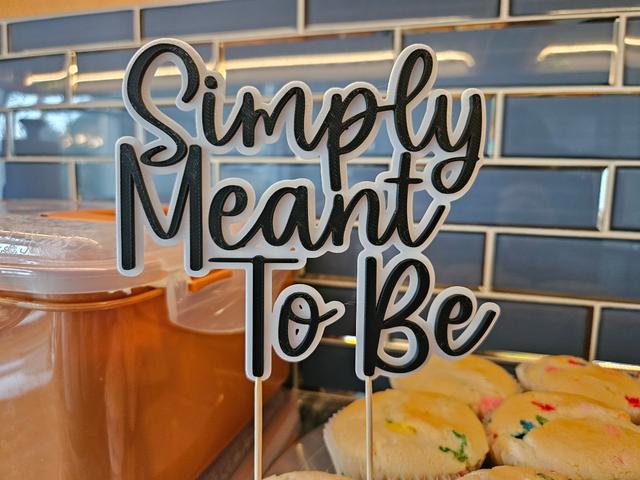
Customizable Cake Topper
by Greg M · via Printables
| Format | STL |
| Category | Home |
| License | CC BY |
| Triangles | 50.0k |
| Uploaded | Sep 20, 2024 |
⬇ 377 downloads
❤ 21 likes
👁 905 views
Description
Another customizable cake topper. This one aims to be highly legible (even at a distance), and uses toothpicks to hold into the cake for food safety. The process: 0. Install OpenSCAD (https://openscad.org/downloads.html). Open the .scad file attached. Select a font: Change “fontName” (line 8) Available options depend on your operating system. OpenSCAD has a list for your computer under Help → Font List Select a message: Change “tl1”, “tl2”, and “tl3” (lines 11-13) Move the lines of text around until it looks nice Change “tlx1”, “tlx2”, and “tlx3” (lines 14-16). If necessary, “my” (line 1) will increase or decrease the vertical space between lines. Once you are happy with the text, move the toothpick holes to suitable locations. To make that a lot easier, add a ‘}’ on line 40, then delete the one on line 43. This will make the toothpicks visible. Adjust the position left/right by changing the first number in the '[]' brackets on lines 41 and 42 until the toothpicks intersect the letters. Add the ‘}’ back on line 43, and remove the one added to line 40. In your slicer, add a color change or pause (for manual color change) when the text size changes. In my slicer, color changes and pauses are at the beginning of a layer, so I added it to the first layer that the small text is printed. YMMV. You may also need to change the thickness of the two layers (bt/tt, line 2 and 3), and the size of toothpick (tpr, line 4), or the amount of stretch on the background text layer (ooo, line 20). Tips for first time OpenSCAD users: Go to Edit → Preferences → Features, and turn on fast-csg, manifold, or both. This will speed up rendering. After a small change, you can do a visual (quick) render by pressing “F5”. Before exporting the model, you must do a geometry (full) render by pressing “F6”. Left click drag, and right click drag on the 3D model will do most of what you need to view this. If you ever get lost in the 3D viewer, “Ctrl+4” will return to a top down view at the origin. To export, press “F7”, or File → Export → Export as STL. Happy (Whatever you're celebrating)!
Originally published on Printables