Hyperpixel 4" Touchscreen + LCD + Raspberry Pi4 for Octoprint and OctoDash Prusa for MK3s+
by rockethorse · via Printables
| Format | STL |
| Category | Art |
| License | Public Domain (CC0) |
| Triangles | 17.4k |
| Uploaded | Sep 15, 2023 |
⬇ 1.0k downloads
❤ 363 likes
👁 13.9k views
Description
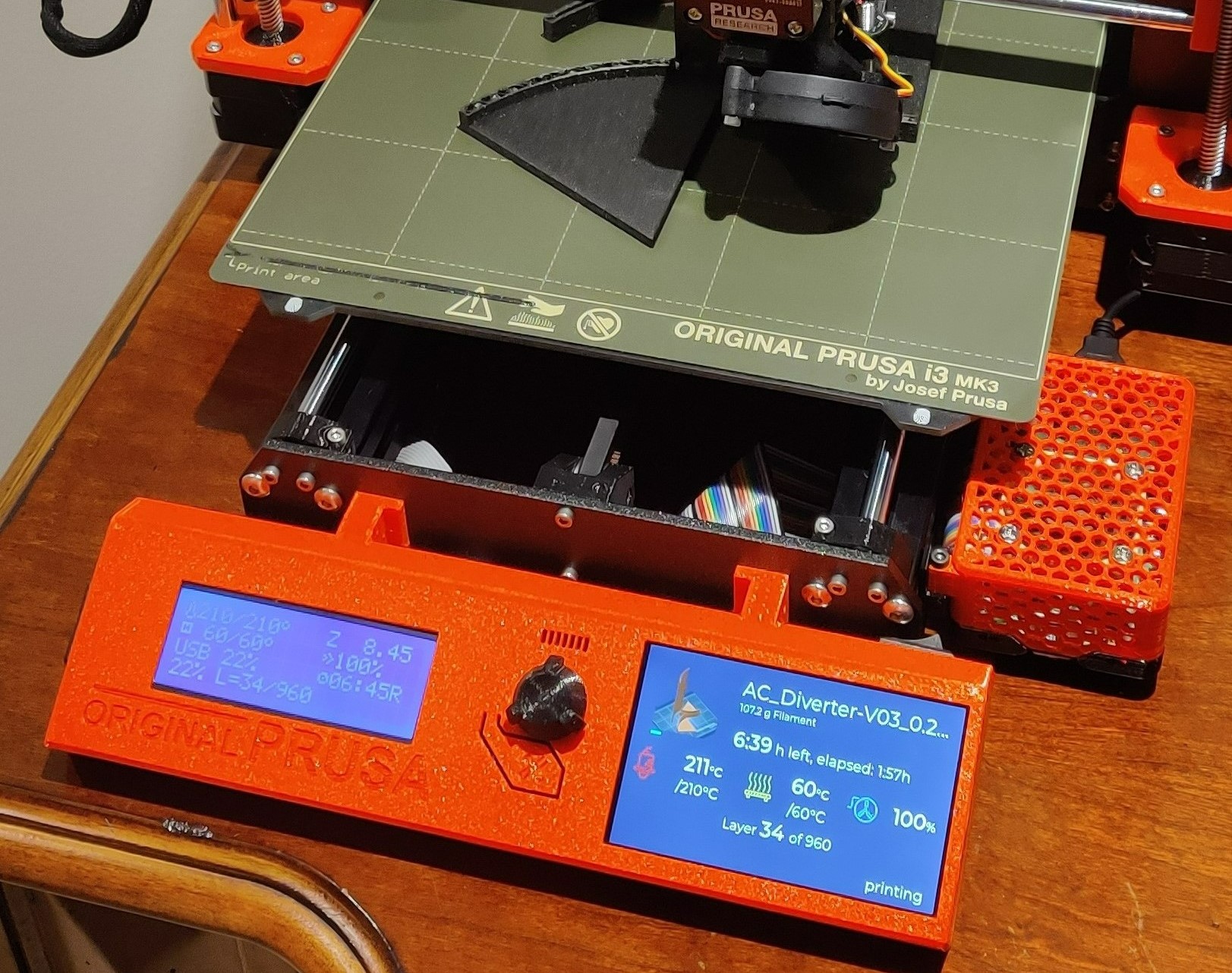
LCD panel that works with the awesome Hyperpixel 4" touchscreen with Raspberry Pi4. This is for: MK3/MK3S/MK3S+ and Pi4 Yet another remix of the 4” HyperPixel cover for the Prusa MK3S+ for the Pi4 to be used with Octoprint and Octodash. The goal of this remix and why it is different than the previous iterations: No USB cables sticking out of the side of the control panel Utilize a standard USB-C power supply for the Pi4 and hyperpixel (instead of a buck transformer) No power USB-C Cable sticking out of the side of the panel or Pi4 No soldering on the Pi4 or Hyperpixel screen Easy installation of the Hyperpixel screen without cracking it Utilize a 40mm Noctua 5v fan at 3.3v for total silence A dedicated power switch for the Pi4/Hyperpixel Everything physically connected to the Prusa printer so there are no dangling wires or parts One USB-C power connection at the back of the printer next to the power supply for easy hookup Must look cool and not increase the depth of the overall printer significantly Must run Octoprint and Octodash flawlessly Update: After using this mod for a year and a half, the only thing I would change would be to delete the fan. I have now concluded that the fan is overkill and not necessary. Parts utilized: Raspberry Pi 4 4GB https://amzn.to/3qjVik3 Pimoroni HyperPixel - 4.0" Touchscreen https://amzn.to/3wOFF50 -or- https://tinyurl.com/42zw6wax 40 Pin 8" Female to Male Ribbon Cable https://amzn.to/2TSIfse GPIO 1 to 2 Expansion Board https://amzn.to/2UwFsW1 SparkFun USB-C Breakout Board https://amzn.to/3qpmhcn Noctua NF-A4x10 5V Fan (40x10mm) https://amzn.to/2SU37Pz CanaKit 3.5A Raspberry Pi 4 Power Supply (USB-C) https://amzn.to/3xLzDC3 Samsung PRO Endurance 32GB MicroSD https://amzn.to/3gLpIa4 Heat Shrink Tubing https://amzn.to/3gLwRqN USB-C Extension Cord https://amzn.to/3gSjCUl On/Off Rocker Switch https://amzn.to/35IXh6n Jumper Wires https://amzn.to/3xFpXZW Miscellaneous Screw Kit https://amzn.to/3xFpFCk Female Spade Wire Crimp Terminals https://amzn.to/3qi0nru All STL files are included. UPDATE/NOTE: Please see the comments section for the writeup by @Dadof6 - he does an excellent writeup from his experience on this project. Other makers have utilized his comments with success, so please read his comments before proceeding! How to assemble summary: You need some moderate to advanced knowledge of how to connect power and how to get power from the GPIO pins of the Pi4. If you mess up anything doing this you will fry your Pi4 for sure. So don’t do this unless you are prepared to fry your Pi4 Print the panel Print the bracket you need to hold the hyperpixel (4 different thickness brackets are included so you can use whatever length screws you might have laying around) Print the Pi4 Case Print the Pi4 Case Brackets Install the Hyperpixel into the panel with the GPIO connector at the top, use one of the brackets to hold it in place (2 M2 or M3 short screws needed). Make sure not to put any pressure on the screen when installing because you might crack or somehow damage the screen. If necessary, flex the panel to get the hyperpixel to drop in smoothly Install the power rocker switch in the panel - it needs to go in with the spade connectors on the far right side of the panel (when looking at the panel from the front). If installed incorrectly the spade connectors will hit the hyperpixel screen and you won't be able to connect the power wires to the switch Solder a female breakout wire to ground to the SparkFun USB-C Breakout Board Solder a wire from the SparkFun USB-C Breakout Board V+ to a wire and female spade connector Connect that V+ connected spade connector to the power rocker switch Connect a female spade connector to a female breakout wire Connect that spade connector to the power rocker switch With 2 M2 or M3 short screws, screw the SparkFun USB-C Breakout Board to the inside-side of the right hand panel mounting bracket (2 holes are there for this) Connect the GPIO 1 to 2 Expansion Board to the hyperpixel Solder female breakout connectors to the (+) and (-) leads of the Noctua fan Connect the Noctua fan female breakout connector leads to a 3.3v pin on the GPIO 1 to 2 Expansion Board (connected to the back of the hyperpixel) Connect the ground female breakout connector lead from the SparkFun USB-C Breakout Board to a ground pin on the GPIO 1 to 2 Expansion Board (connected to the back of the hyperpixel) Connect the 5v female breakout connector lead from the power rocker switch to the GPIO 1 to 2 Expansion Board (connected to the back of the hyperpixel) Connect the 40 Pin 8” Female to Male Ribbon Cable (male end) to the GPIO 1 to 2 Expansion Board (connected to the back of the hyperpixel) Install the Prusa LCD - make sure it is allignd square before tightening Install 4 square nuts on the panel brackets Plug the male end of the USB-C Extension Cord into the SparkFun USB-C Breakout Board Use the 4 hex bolts to attach the panel to the printer metal forward bracket Place the Pi4 in the Pi4 case bottom Screw the Noctua fan into the Pi4 case top with the 4 screws that come with the fan Thread the 40 Pin 8” Female to Male Ribbon Cable through the side cutout of the Pi4 case top, install the female end of the cable into the Pi4 GPIO header, and snap close the Pi4 case On the right side of the Prusa, twist fit the Pi4 Case Brackets Screw the Pi4 case from the top down into the Pi4 Case Brackets Cable manage the USB-C Extension Cord to get it from the panel to the back of the printer, and use cable ties to tie it to the printer frame where appropriate To setup the hyperpixel, follow the instructions here: https://github.com/pimoroni/hyperpixel4/tree/pi4 After following the github installation instructions for installation of the hyperpixel drivers, to properly rotate the screen orientation of the hyperpixel (which survives reboot), you need to text edit the </boot/config.txt> file and comment out this by adding a # sign in front of this line: # dtoverlay=vc4-fkms-v3d And insert this new line: dtoverlay=hyperpixel4,touchscreen-inverted-3,touchscreen-inverted-3 display_lcd_rotate=3 Caution: If doing this be very careful because when using the GPIO 1 to 2 Expansion Board to provide power to the Pi4/Hyperpixel and provide power to the 40mm fan you can easily fry things on the Pi4 and Hyperpixel screen. Check everything once, twice, three times before powering anything on! Original projects this was remixed from: Hyperpixel Panel: https://www.prusaprinters.org/prints/47153-lcd-hyperpixel-4-touchscreen-cover Malolo's snap fit case pi4 Case: https://www.thingiverse.com/thing:3723561 Here is a great looking remix of this panel without the power switch cutout: https://www.prusaprinters.org/prints/70062-hyperpixel-4-touchscreen-lcd-raspberry-pi4-without Warning: I received a series of private messages from a user who has attempted to replicate this build, but experienced “low voltage” error messages from OctoPrint that they have been unable to resolve, despite valiant effort. I have not experienced low voltage errors, but this appears to be a risk in this build. Followup: After a year of using this mod and publishing it here, I am thrilled to see how many others are also enjoying this project. NOTES and DISCLOSURE: This post contains affiliate link(s). An affiliate link means I may earn advertising or referral fees if you make a purchase through my link.
Originally published on Printables