Kingdom Legacy – Card Box Organizer (All Expansions)
by Duzi · via Printables
| Format | STL |
| Category | Organisation |
| License | CC BY-NC |
| Triangles | 3.2k |
| Uploaded | Mar 17, 2026 |
⬇ 71 downloads
❤ 12 likes
👁 248 views
Description
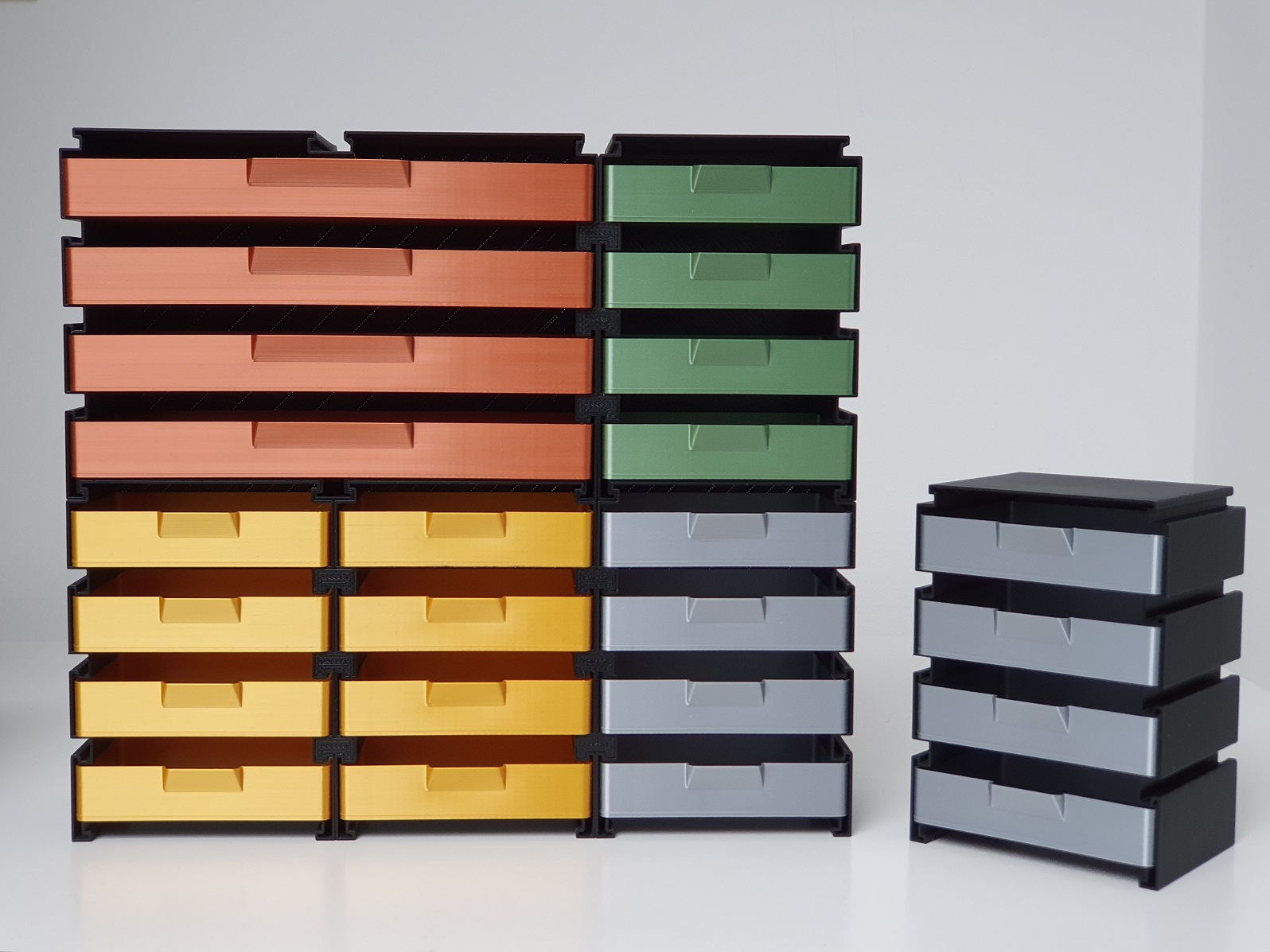
Ultimate Card Storage Solution for Kingdom Legacy: Feudal Kingdom (with all expansions - and room for future ones!) Available in two sizes : Normal and Doubled . Normal Box (inner length: 160 mm) Holds up to 533 unsleeved cards Double Box Holds up to 1066 unsleeved cards Features Wide enough to hold sleeved cards. Self-closing shutter door for convenient access Two types of double-sided dividers : Fixed and Loose Bottom groove that helps pick up cards that fall to the bottom Modular design of the Double Box allows easy disassembly into two separate Normal boxes AMS-supported front panel with the game’s name Extra space for storing a small notebook, sleeves, Sharpie, or pencil Dimensions Outer Dimensions Normal: Width: 76.5 mm Height: 105 mm Depth: 178 mm Doubled: Width: 153 mm Height: 105 mm Depth: 178 mm Inner Dimensions Width: 67.7 mm Height: 96 mm Depth: 160 mm How to Print & Assemble Normal Size Print the Box , Lid , and Shutter first. 1a. If possible, apply a small amount of silicone grease to the edges of the shutter to improve smoothness. Insert the shutter into the groove of the box as shown in the image with the blue box. Apply super glue to the grooves on the lid. Attach the lid to the box. Print the Front . If you have an AMS , add the Normal_Size_Box_Front_AMS file and align it perfectly with Normal_Size_Box_Front . Change the AMS model color to white to achieve a clean two-color front. Without AMS, you can still add a manual color change at the appropriate layer using only Normal_Size_Box_Front . Slide the front panel into the front grooves of the box. Print dividers as needed. Double Size Print: 2× Shutter Double_Size_Box_Left Double_Size_Box_Lid_Left Double_Size_Box_Right Double_Size_Box_Lid_Right Double_Size_Box_Connectors 1a. If possible, apply silicone grease to the edges of both shutters. Insert the shutter into the groove of the right box , as shown in the image with the blue box. Apply super glue to the grooves on the right lid . Attach the lid to the box. Repeat steps 2–4 for the left box . Slide the connectors into the grooves on the side of the boxes. DO NOT USE SUPER GLUE. Join the two boxes by sliding the second box into the connectors. Print the Front . If you have an AMS, add the Double_Size_Box_Front_AMS file and align it with Double_Size_Box_Front . Change the AMS model color to white for a two-color effect. Without AMS, use a manual color change on the correct layer with Double_Size_Box_Front only. Slide the front panel into the front grooves of the joined boxes. Print dividers as needed. Dividers Two types of dividers are included: Fixed Dividers Slide into grooves in the inner walls and bottom of the box Create fixed-sized, unmovable sections Thickness: 0.8 mm Loose Dividers Approximately the size of a sleeved card, but thicker Allow flexible card organization Thickness: 0.6 mm You’ll find dividers labeled for all expansions, plus some extras. Blank dividers are also included if you prefer custom labeling. To make the text stand out, apply a color change at the text layer during printing. Recommended Print Settings Material: PLA Infill: 15% Gyroid (for better rigidity) Disclaimer Applying silicone grease to the shutter edges is highly recommended for smoother operation. Alternatively, print the shutter in PETG , which is naturally more slippery than PLA. Use super glue to secure the lid to the box for best durability. You can print only the left part of the Double Box and use the Normal Box front if you don’t need the full double size yet. Later, you can upgrade by printing the right part and the wider front panel
Originally published on Printables