ProtoXtruder 2.0 with filament sensor
by BryanA · via Printables
| Format | STL |
| Category | Art |
| License | CC BY-NC-SA |
| Triangles | 16.0k |
| Uploaded | Nov 18, 2025 |
⬇ 127 downloads
❤ 26 likes
👁 808 views
Description
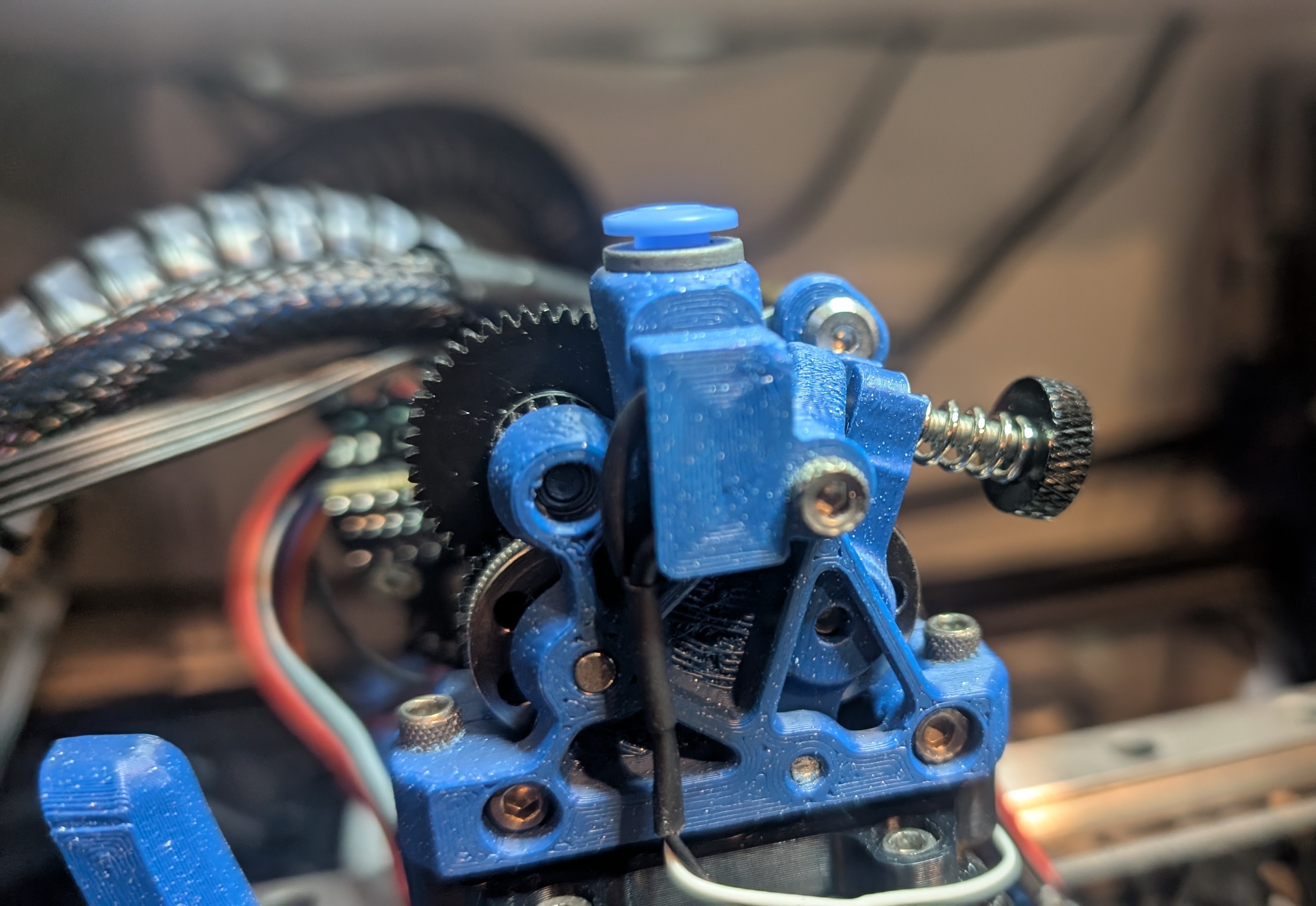
Remix of Mika's untested “FilamentHub” version of ProtoXtruder 2.0. Changed filament sensor portion to single filament, adjusted the ball bearing location to make the filament sensor work more reliably, added some mounting holes missing from the original remix and added options for either ECAS04 or collet for securing a PTFE tube to the top. Requires: 4mm ball bearing (several may be found inside a 604ZZ skate board bearing) microswitch (either without the metal arm, or carefully remove the arm) ECAS04 or 4mm collet Only front side has been modified. Use the back & idler arm from the original ProtoXtruder 2.0 design Depending on print quality you may still need to fiddle with the hole slightly to clean up anything obstructing movement of the bearing. In addition, I found it helpful to apply a small bit of thin foam tape to the back of the micro switch so that the cover piece keeps it pressed securely in place. Configuration: So you've added a filament sensor. Now what? There are a number of basic filament sensor klipper macros around, but the most well-developed macro I've found so far can be found in the Oribitor v2 Sensor github. This macro features auto-loading when filament inserted, plus a bunch of error-handling & easily configured values for load/unload temps & lengths, park position, etc. https://github.com/RobertLorincz/Orbiter-2-Smart-Sensor/blob/main/Klipper%20Config/Orbiter2_SmartSensor.cfg Upload the orbiter config to your klipper config directory Open your printer.cfg and add an include statement pointing to the orbiter file. [include Orbiter2_SmartSensor.cfg] Open your Orbiter2_SmartSensor.cfg file, find the [filament_switch_sensor O2_sensor] section, and change the switch_pin to whatever pin name you have plugged your sensor into. Optionally, you may rename the sensor if desired by changing "O2_sensor" to whatever you wish. This only effects the name shown in Fluid/Mainsail and does not have any effect on the macro. Find the line beginning with “[gcode_button filament_unload]” and comment out this entire section as it is not applicable without the physical unload button of the Orbiter 2 SmartSensor. Shameless plug: If you find any of my designs useful and wish to show your appreciation, the best way to do so is to support a small family-owned business and buy your next roll of filament from https://go.photonlight.com/filament. :-)
Originally published on Printables