Surface Activation pad
by jjhcs1 · via Thingiverse
| Format | STL |
| Category | Other |
| License | CC BY-SA |
| Triangles | 12 |
| Uploaded | Mar 17, 2026 |
⬇ 14 downloads
👁 38 views
Description
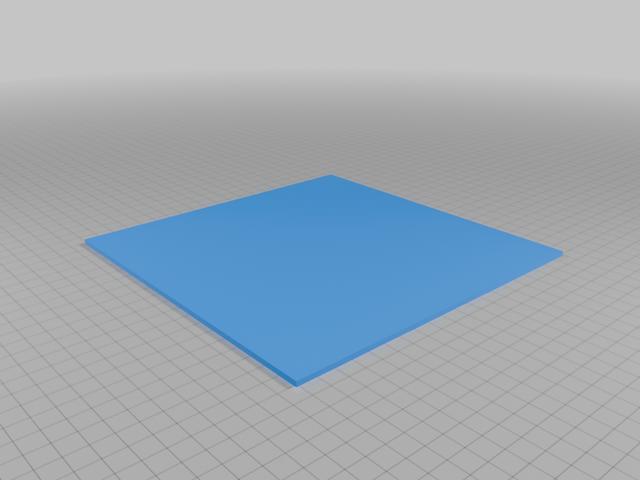
This is for Activating bed Pads... so you Don't have to use glue or Any other Adhesive or Hairspray. Manually adjust your nozzle and base so that they the same around the base by moving your Nozzle to zero position then moving the nozzle around the bed with the software or the Move Menu use a posted note to get the gap right to start. (you will need to adjust it with the M851 Z0.00 later to get the ribbon of plastic laying flat later.) Clean your Bed with Isopropyl Alcohol make sure the PETG or PETE Bed cover is completely clean then make sure your Nozzle is no more the your nozzle width away from the base Nozzle 0.4mm is 0.28mm to 0.3mm and preform an Automatic Leveling then do a PID Tune on you base and nozzle. also move your printer around the bed Using Pronterface and your USB Interface cable Or the printers Move Menu NEVER move the Nozzle by hand you will screw up the settings. at factory they never set anything Command line Show Status with M503 command your Nozzle z probe offset this will make sure your Nozzle is set correctly there are 3 settings M851 X-31.80 Y-40.50 Z-3.01 Z is your Nozzle offset Its supposed to be Zero to when you proform a Z home your nozzle is supposed to be in the middle of the bed and 10mm above the Bed if you type G1 Z0.00 F1500 you nozzle should quickly move and Hover 0.28mm Above the bed.. IMPORTANT to have a Finger on the Power switch During Calibration, you can damage your printer nozzle if your not paying attention. Here is a Basic Start setup for the Gcode add it you your Printer setup Start code m140 S60; set base to 60C m190 S216; Set nozzle to 216C m104 s216; start heating the Extruder m109 s216; wait fro the extruder to reach temp M420 S1 Z2;Enable Automatic Leveling Data g92 E0 G28 ;Home ; this next portion is designed to get the plastic in the Nozzle flowing G1 Z2.0 F3000 ;Move Z Axis up G1 X10.1 Y20 Z0.28 F5000.0 ;Move to start position G1 X10.1 Y200.0 Z0.28 F1500.0 E15 ;Draw the first line G1 X10.4 Y200.0 Z0.28 F5000.0 ;Move to side a little G1 X10.4 Y20 Z0.28 F1500.0 E30 ;Draw the second line G92 E0 ;Reset Extruder G1 Z2.0 F3000 ;Move Z Axis up End Code G91 ;Relative positionning G1 E-2 F2700 ;Retract a bit G1 E-2 Z0.2 F2400 ;Retract and raise Z G1 X5 Y5 F3000 ;Wipe out G1 Z10 ;Raise Z more G90 ;Absolute positionning G1 X0 Y220 ;Present print M106 S0 ;Turn-off fan M104 S0 ;Turn-off hotend M140 S0 ;Turn-off bed G27 P2 ; Always raise Z M84 X Y E ;Disable all steppers but Z After you have don all this you will then need to test your settings by printing the Flat square you will need to adjust it for your printer its Default is 200mm by 200mm By 1.5mm
Originally published on Thingiverse