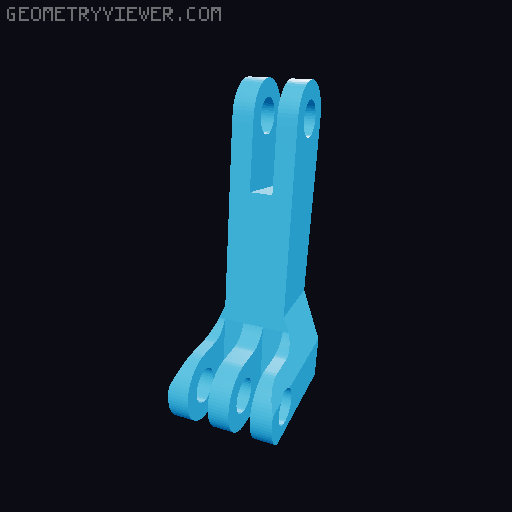
Valve Index Frunk/Big Screen Beyond: Face Tracking Mount
by Dubby · via Printables
| Format | STL |
| Category | Mechanical |
| License | CC BY-NC-SA |
| Triangles | 1.8k |
| Uploaded | Feb 19, 2026 |
⬇ 47 downloads
❤ 4 likes
👁 471 views
Description
If you're here for a Valve Face Tracker Mounting solution that's nice and sturdy you've come to the right place! Just download the Frunk replacement, swap it for the current one, and then you're good! However if you wish to assemble your own Face tracker using Project Babble Keep on reading! ------------------------------------ This is a collection of models I used to assemble a Babble face tracker. Using various models and tools all linked in this post. ------------------------------------- == Disclaimer == I just ask if you use this to make a video, a remix, or any content teaching people how to do these steps you reference this post, and the associated posts I have linked in this document so all credit goes to all original creators and remixers! ============= Hardware you need 3d printer Project Babble Approved Components https://docs.babble.diy/docs/hardware (Babble Documentation where all information can be found for the parts) The parts I used: XIAO-ESP32S3-Sense Board from Seeed Studio https://www.seeedstudio.com/XIAO-ESP32S3-Sense-p-5639.html This board is capable of Wireless and Wired, In this tutorial I will be using a wired connection. OV2640 160° FOV IR / Night Version (850nm) (found on AliExpress) Make sure you get the shorter length one with the larger FOV (160) I did the Visible Light Options from the Babble documentation and picked the 68ohm wired to the 3.3v 📷 Image redacted — claim this model to add your own media Additional Tools/Parts Generic 26 AWG wiring (I recommend getting colors to keep things straight) https://www.amazon.com/dp/B09Y872KTX?ref=ppx_yo2ov_dt_b_fed_asin_title&th=1 Soldering Iron I got one from Menards for about $25 and it came with Soldering. USB C Cable (I recommend a right angle one) https://www.amazon.com/dp/B0DQS9WR4W?ref=ppx_yo2ov_dt_b_fed_asin_title&th=1 📷 Image redacted — claim this model to add your own media USB C to C Option for BsB: https://www.amazon.com/dp/B0DQ8B8PFR?smid=AMPV5JPIE48RB&ref_=chk_typ_imgToDp&th=1 m5 Screws with nuts https://www.amazon.com/dp/B0DFWM68PX?ref=ppx_yo2ov_dt_b_fed_asin_title&th=1 Heat Shrink Tubing or Electrical tape Zipties (optional) Software you will need to download Eye Track VR Firmware flashing tool https://docs.eyetrackvr.dev/firmware_guide/flashing_tool This is for flashing the ESP32 board NOTE: I used the USB only flash, the ESP32 board recommended above is capable of wireless and wired, I choose to do wired since this is primarily to be used with Index. Project Babble https://github.com/Project-Babble/ProjectBabble VRCFT (VRChat Face Tracking) https://store.steampowered.com/app/3329480/VRCFaceTracking/ (Install the Babble FT module in the Modules section of the app) Optional Step : To make my life easier I bound Project Babble to start whenever steam Opens, if you wish to do this follow the steps below: Go into the Project Babble folder Add a file in it called “manifest.vrmanifest” or “app.vrmanifest” Edit the file and paste in the following { "source" : "builtin", "applications": [{ "app_key": "ProjectBabble.App", "launch_type": "binary", "binary_path_windows": "Babble_App.exe", "is_dashboard_overlay": true, "strings": { "en_us": { "name": "Project Babble", "description": "Face Tracking Module for Sending to VRCFT" } } }] } Save the file. If the file looks like this 📷 Image redacted — claim this model to add your own media Then open Steam VR (Don't need to have Headset connected) and then double click this file) it'll add the program to start on Steam VR Startup NOTE: You can modify things about the project Babble vrmanifest to fit how you like, and it's always possible there will be one added in the future. for VRCFT: If the program isn't starting with Steam VR just browse local files from steam and then double click on the app.vrmanifest while steamVR is running inside the VRCFaceTracking folder. Printing When printing you'll likely need to print the following: Frunk Mount If you want speed, go with the usual supports, it'll be much faster but the support material is harder to get off If you don't mind waiting go with organic supports but it will take longer and use less support material saving you money. Seeed Studio shell Left and right Face Tracker Extension (If you want to do your own lighting solution you can ignore this next part) LED Snap-in Mount This is the LED Snap-In I made from scratch. I know is loose on both the board shell and the LED mounts, so feel free to modify the holes or change it as needed! The Default hole size for this is 5 mm 5 mm LED Mount x2 Assembly Following the wiring guide for the Babble Face Tracking, wire your lighting how you wish. Once wired, Change the default camera that came on the ESP32 board to the 160 camera. you can do this by lifting the little plastic flap and sliding out the camera gently Then put the new camera in and then put the flap back down DO NOT FORCE PULL OR PUSH! It should be nice and easy Flash then test the firmware of the camera Open Eye Track VR Firmware Flash tool and select the proper firmware you want in this case USB for the ESP32 Seeed Studio board. Take note of the COM port your cam is connected to Open project babble and enter the COM port of your Camera and you should see what the camera sees. (Repeat previous steps as needed) If working, Unplug the camera and continue to the next step. Assemble both halves of the Camera Shell around the ESP32 board taking extra care to not squish the camera's cable. Plug in the USB-C Cable with the cord facing backwards and then Cord Manage and Zip Tie as needed Once the Camera Module is assembled and cable managed Unscrew the 4 screws holding the original Frunk in the Index in place and save the screws for the next step Feed the USB cable through a hole in the frunk and then plug it into the USB slot Place the New Frunk mount in place and screw it down Using M5 Screws finish the assemble using the extender if needed Optional: snap in the LED Snap-in mount to the bottom of the ESP32 Shell and then the associated 5mm LED snap in's NOTE: Plug in the USB C and make sure the SNAP in component is flipped the right way to not interfere with the USBC cable DONE! My Setup Fully Assembled 📷 Image redacted — claim this model to add your own media 📷 Image redacted — claim this model to add your own media 📷 Image redacted — claim this model to add your own media My friend Wally and his setup using the Frunk 📷 Image redacted — claim this model to add your own media
Originally published on Printables